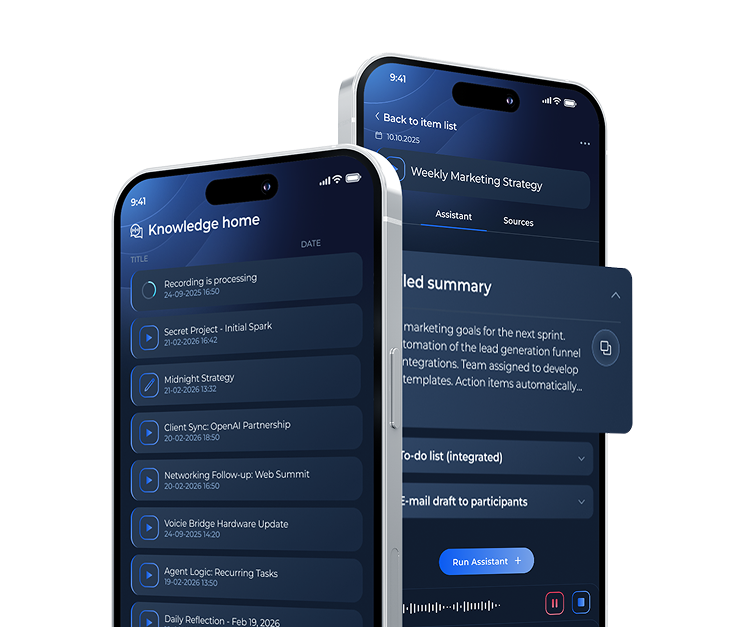

How to create your own AI assistant in Voicie. A step-by-step guide.
An AI assistant in Voicie is a configurable artificial intelligence profile that processes your recordings and documents according to your instructions. You can connect it with webhooks and automation platforms like n8n or Make so that results go straight to your CRM, Slack, or Google Sheets.
What is an AI Assistant in Voicie?
An assistant functions as a collection of instructions for AI. You specify its purpose (summarize, analyze, generate content, extract data), desired response format (text or JSON), and behavioral guidelines (tone, style, detail level).
Running an assistant on a knowledge item causes it to analyze all sources within that item — recordings, texts, documents — and produce a result.
Step 1: Create a New Assistant
- Navigate to the Assistants section in the More tab
- Click + New assistant
- Complete basic information:
- Name — e.g., “Meeting summary”
- Description — brief explanation of function, e.g., “Creates a concise summary with a task list”
Step 2: Write a System Prompt
The system prompt provides AI instructions for processing your content. This represents the most critical configuration component.
Example: Meeting Summary
You are an assistant for summarizing business meetings. Based on the transcript:

1. Create a concise summary (max 5 sentences)
2. List key decisions as bullet points
3. List action items with assigned people and deadlines
4. Identify open questions requiring follow-up

Format: Markdown. Language: English. Tone: professional, specific.
Example: Content Creator
You are an assistant for creating LinkedIn content. Based on the user's voice recordings:

1. Identify the main topic and key insight
2. Create 3 post variants, each with a different hook (question, controversy, story)
3. Each variant: max 1300 characters, with emoji, with a CTA at the end

Format: Markdown. Tone: human, engaging, no corporate jargon.
Example: Data Extraction for CRM
You are an assistant for analyzing sales calls. From the transcript, extract:

- company_name: string
- contact_person: string
- email: string (if mentioned)
- needs: string[] (list of identified needs)
- budget: string (if mentioned)
- next_steps: string[] (agreed actions)
- priority: "high" | "medium" | "low"

Format: JSON. Do not add any comments outside the JSON.
Example: Meeting Notes with Automatic Sending
This example demonstrates combining a system prompt with webhook integration into a unified workflow. The objective: automatically deliver a prepared summary to Slack after each meeting, with data flowing to your CRM — requiring zero manual effort.
System prompt:
You are an assistant for processing business meetings. Based on the transcript, generate:

- meeting_date: string (date of the meeting, if mentioned)
- participants: string[] (list of participants)
- summary: string (summary in max 5 sentences)
- action_items: [{ person: string, task: string, deadline: string }]
- decisions: string[] (decisions made)
- next_meeting: string (if scheduled)

Format: JSON. No comments outside the JSON.
Configuration: Set response format to JSON, input the n8n URL in the Webhook URL field. Within n8n, establish a workflow: the webhook obtains JSON, processes it, transmits the summary to Slack, generates tasks in ClickUp, and refreshes the contact in CRM. The complete pipeline executes automatically — you simply record the meeting and activate the assistant.
Step 3: Choose the Response Format
Voicie provides two formats:
Text (Markdown) — for readable documents, summaries, posts, emails. The result displays as formatted text with headings, lists, and bold text.
JSON — for structured data intended for external systems. Ideal for integrations with CRMs, spreadsheets, and databases.
Step 4: Run the Assistant
- Open any knowledge item (Knowledge Item)
- Click Run assistant
- Select an assistant from the list
- Confirm the run
The assistant will analyze all sources in that item and generate a result. The result appears in the Assistants tab of the knowledge item — you can review it, copy it, or process it further.
How to Connect an Assistant with Webhooks and Automation?
Generating summaries alone represents just the beginning. Assistants demonstrate their true capability when paired with webhooks.
What is a Webhook
A webhook functions as a URL to which Voicie automatically transmits the assistant’s output and all source materials. When the assistant completes processing, the data (text or JSON) goes to the designated address — without requiring any additional action from you.
How to Configure a Webhook
- Within assistant settings, locate the Webhook URL field
- Insert the URL from your automation platform (n8n, Make) or target system directly
- From this point forward, every assistant run automatically dispatches the result to that address
What Exactly Does the Webhook Send
The webhook transmits the assistant’s result (text or JSON) along with all source materials from the knowledge item. Furthermore, it incorporates context: information regarding the knowledge item and the sources employed to create the result.
Automations with n8n and Make
Webhooks unlock automation possibilities. Additional practical scenarios appear in 10 ways to use Voicie. Below demonstrates what this resembles in practice with n8n or Make.
Scenario: Recording —> Summary —> CRM + Slack
- Voicie: You record a conversation with a client, run the “Call analysis” assistant
- Assistant: Generates JSON with client data (name, needs, budget, next steps)
- Webhook —> n8n/Make: Data is sent to the webhook
- n8n/Make processes:
- Searches for or creates a contact in HubSpot/Pipedrive
- Adds a note with the summary to the contact
- Sends the summary to a Slack channel
- Creates a follow-up task in ClickUp
One voice recording initiates an entire sequence of operations. No manual retyping, no switching between applications.
Scenario: Notes —> LinkedIn Post
- Voicie: You record ideas throughout the day
- Assistant: “Content creator” generates 3 post variants
- Webhook —> Make: Variants go to Google Sheets or Notion
- Optionally: Automatic post scheduling via Buffer/Hootsuite
Scenario: Workout —> Google Sheets
- Voicie: After a workout, you say what you did
- Assistant: “Fitness coach” extracts data (exercise, sets, reps, time)
- Webhook —> n8n: Data goes to a Google Sheets spreadsheet
- Optionally: Weekly report with automatic trend analysis
Scenario: Meeting —> Tasks in ClickUp
- Voicie: You record a meeting (with your phone or via system audio on a MacBook)
- Assistant: “Task list” extracts action items with assigned people and deadlines
- Webhook —> n8n/Make: Each action item becomes a task in ClickUp/Asana
- Bonus: Meeting summary goes to a Slack channel
How to Create Better Assistants? Tips
Be specific in your system prompt. The more precise your instructions, the better the results. Rather than “summarize,” write “create a summary in 5 bullet points, each max 2 sentences, with action items at the end.”
Test on small samples. Before executing the assistant on a 30-minute recording, test it on a short 2-minute clip.
Use JSON for automations. If the result requires delivery to an external system, select JSON format and specify the exact structure in the system prompt. This permits n8n/Make to effortlessly parse the data.
Create specialized assistants. It’s preferable to maintain 5 specialized assistants rather than one “does-everything” assistant. A “Meeting summary” assistant will deliver superior results than a “General” assistant because it possesses precise instructions.
Iterate. The initial system prompt rarely achieves perfection. Execute it, examine the result, enhance the prompt, execute it again. With each iteration, the results will improve.
Use context from multiple sources. The assistant processes all sources in a knowledge item — recordings, texts, documents, links. The more materials you contribute to a single item, the fuller the picture the AI obtains and the superior the result will be. If you have a client call, incorporate emails, notes, and specifications into the same item — the assistant will take it all into account.
Chain assistants in sequences. One assistant extracts data from a recording and generates JSON. The webhook transmits that JSON to n8n. n8n activates the subsequent step — e.g., enriches the data, dispatches a notification, or generates tasks. You can construct multi-step flows where Voicie functions as the initial link in the automation chain.
Automatic Assistant Triggering
The default assistant executes automatically when you establish a new Knowledge Item and contribute the initial source to it. This permits you to fully automate specific workflows — you record, and the remainder happens independently: transcription, processing by the assistant, and results transmitted via webhook.
From Recording to Automation in a Single Click
You speak —> AI processes —> the result goes where it should. No manual steps in between.
You establish the assistant once. You configure the webhook once. Subsequently — every time you record something new and execute the assistant — the complete chain initiates independently. Set up once, runs forever.
Frequently Asked Questions
What is a System Prompt?
A system prompt is a set of instructions that tells the AI how to behave. In Voicie, it defines what the assistant should do (summarize, analyze, extract data), what format to respond in (text or JSON), and what tone to use.
How Do I Connect Voicie to HubSpot?
Set the response format to JSON, specify the data structure in the system prompt (company name, needs, budget, next steps), and insert your n8n or Make webhook URL in the assistant settings. When the assistant executes, it produces JSON that the webhook transmits to n8n/Make, which then generates or modifies a contact in HubSpot.