How to Install an MCP in Voicie (Using Gmail as an Example)
A step-by-step guide to connecting an MCP to the Voicie Desktop agent. Using the Gmail MCP: an OAuth client in Google Cloud, downloading the package, authorizing, and troubleshooting.
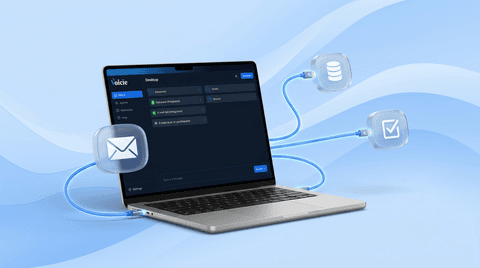
An MCP is a connection that gives the Voicie agent access to your tools — your inbox, a database, a task system. Unlike a skill, it isn’t an instruction file; it’s a small package you connect once, then configure through a window in the app.
I’ll walk it through with the Voicie Gmail MCP, because it’s the first ready-made MCP and a concrete example. Other MCPs install the same way — the only thing that changes is which credentials you type in.
Not sure what an MCP actually is, or how it differs from a skill? Start with what MCP is, then come back here for the install.
What you need
- The Voicie Desktop app installed
- The Google account whose Gmail you want to use
- About 10 minutes for the one-time Google Cloud OAuth client setup
Part 1. An OAuth client in the Google Cloud Console (once, ~10 min)
This is a one-time job. You create your own key to Google so the agent connects to your inbox on your credentials, not on any Voicie account.
1. Create a project
Go to the Google Cloud Console and create a new project or pick an existing one.
2. Enable the Gmail API
Head to APIs & Services → Library, search for “Gmail API,” and click Enable.
3. Configure the OAuth consent screen
In OAuth consent screen, set the User type to External, fill in the app name and email addresses, and under Test users add your own address.
Important: while the app stays in Testing mode, Google expires the refresh token every 7 days — and you’ll have to log in again every week. Click Publish app (Production) to avoid that. For your own single-account use it works fine even as “unverified,” so Google verification isn’t needed here.
4. Create the OAuth client
In Credentials, click Create credentials → OAuth client ID and choose the Desktop app type. You get a Client ID and a Client secret — the two values you’ll type into Voicie in a moment.
Part 2. Download and drop in the MCP
5. Download the package
From the repository’s Releases page, download the gmail-mcp-v<version>.tar.gz tarball.
6. Open the MCPs folder
In Voicie, go to Settings → MCPs → Open MCPs folder. On macOS this opens:
~/Library/Application Support/com.voicie.desktop/mcps/7. Unpack into that folder
The tarball already wraps a gmail-mcp/ folder, so just unpack it into the MCPs directory:
tar -xzf ~/Downloads/gmail-mcp-v<version>.tar.gz \
  -C ~/Library/Application\ Support/com.voicie.desktop/mcps/
Or drag the unpacked folder in Finder. The result should be a gmail-mcp/ directory sitting inside the MCPs folder.
Part 3. Connect in Voicie (no file-editing)
8. Refresh the list
Restart Voicie, or wait for the file watcher to pick up the new folder on its own. The Gmail card appears in Settings → MCPs.
9. Enter your credentials
On the Gmail card, click Configure and enter the Gmail OAuth client ID and Gmail OAuth client secret from step 4. You type them into a window in the app — no file-editing.
10. Authorize
Click Connect / Authorize. The Google consent screen opens — pick the account and grant access. The card’s status walks through Needs config → Needs auth → Active.
11. Use it
Open a chat and ask the agent:
show my last 5 emailsWorks? Done. Your inbox is now within the agent’s reach.
Troubleshooting
| Problem | What to do |
|---|---|
| ”Access blocked: app not verified” | Click Advanced → Go to <app> (unsafe), or add your email under Test users |
| You have to log in every ~7 days | The app is in Testing mode — publish it to Production |
GMAIL_AUTH_EXPIRED | Re-authorize: Configure → Authorize |
GMAIL_INSUFFICIENT_SCOPE | The token lacks modify/send permission — re-authorize with read and write |
GMAIL_RATE_LIMIT_SPAWN | You hit the 100-calls-per-session limit — restart Voicie |
| The card is stuck on Needs config | Fill in both fields: Client ID and Client secret |
What about other MCPs?
The pattern is the same: download the package, drop it in the MCPs folder, open Configure on the card and enter your credentials, authorize. The only thing that changes is which values you paste — because each tool has its own way of signing in. You’ll find the specific steps on each MCP’s page in the catalog.
Want the bigger picture on what MCP is and when to use it? Read What Is MCP?. For the launch details, see Introducing MCP in Voicie.
Questions? Reach out at voicie.com/contact.