How to Install Skills in Voicie
A step-by-step guide to installing AI skills in the Voicie desktop app. Download a skill, add it in Settings, and start using it immediately.
Skills are reusable instruction sets that teach your Voicie agent how to complete specific tasks — meeting recaps, CRM updates, knowledge base ingestion, and more. Installing one takes under a minute.
New to the idea? Start with what AI skills are and how they work for the concept, then come back here for the install.
What you need
- Voicie Desktop app installed
- A skill file (folder with
SKILL.md) downloaded from voicie.com/skills or from the voicie-skills GitHub repository
Installation steps
1. Download the skill folder
Go to voicie.com/skills, find the skill you want, and click Download. You’ll get a folder containing SKILL.md (and optionally examples/ and assets/).
Alternatively, browse them on GitHub in the voicie-skills repository — open the skill folder you want and download it.
2. Open the Skills folder in Voicie
- Open Voicie Desktop
- Click the Local tab in the top-right of the sidebar
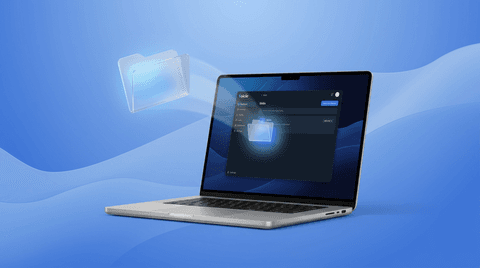
- Find the Skills section in the file tree
- Click the open folder icon (📂) next to Skills — this opens the Skills directory in Finder
3. Move the skill folder
Drag and drop (or copy) the downloaded skill folder into the Skills directory that just opened in Finder.
4. Start a new chat
Open a new chat in Voicie — the skill registry refreshes on chat start. Your skill is now available.
5. Use it
Call the skill with natural language or with the slash command:
/skill-nameEach skill’s description explains what triggers it — check the skill page for exact trigger phrases.
Workspace setup
Some skills expect a specific folder structure in your workspace (for example, Klienci/ for sales skills, Wiki/ for knowledge management skills). Check the skill’s description for any workspace requirements.
You can customize skill behavior by adding a README.md to the relevant data folder — the skill picks it up and adapts to your local conventions.
How skills load (under the hood)
A few details explain the behavior you’ll see:
- Progressive disclosure. On chat start, Voicie loads only each skill’s description into the agent’s context — not the full instructions. The body of a skill is read from disk only when the skill is actually used. This keeps the agent fast even with dozens of skills installed.
- Two trigger paths. A skill activates either by slash command (
/skill-name, exact match) or by the agent recognizing the trigger phrases written in the skill’s description. You don’t have to memorize command names. - Registry refreshes per chat. The skill list is built once when a chat starts and frozen for that session. Add a skill, then open a new chat to pick it up — no restart needed.
- MCP dependencies. A skill can declare required integrations via a
requiresfield in its frontmatter (e.g.requires: ["clickup-mcp"]). Voicie checks those MCPs are connected before running the skill and tells you what’s missing if they’re not. - Skills guide, they don’t override safety. A skill shapes workflow, format, and tone. It can’t bypass permission prompts or security boundaries — file writes and sends still hit the usual gates.
Installing MCPs
MCPs (Model Context Protocol servers) work differently — they’re compiled packages, not instruction files. See the individual MCP page for installation instructions specific to each integration.
Want the bigger picture on what skills are and when to use them? Read What Are AI Skills?. For the launch details, see Introducing Voicie Skills.
Questions? Reach out at voicie.com/contact.