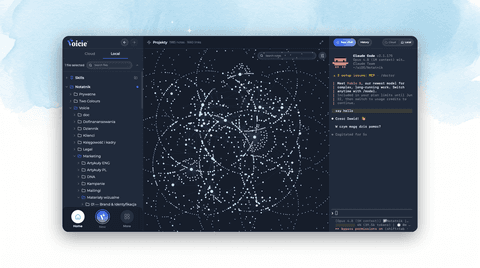

Introducing MCP in Voicie
The Voicie Desktop agent can now use MCPs — connections that give it access to your tools and data. The first official one is Gmail. Here's what landed, how it works, and how to build your own.
The local agent in Voicie Desktop can now use MCPs.
An MCP is a connection that gives the agent access to a tool the model doesn’t have on its own: your Gmail inbox, a database, a task system. You connect an MCP once, and from then on the agent can read and act on what used to sit out of reach — and it does it locally, on your own computer, with your own credentials.
This is a new capability in the app itself, not just a page on our website. Below: what landed, the first official MCP, and how to build your own.
What’s new in the app
MCPs are built into the local agent and the desktop UI:
- An MCPs section in settings. Connected MCPs sit in Settings → MCPs, each with its own card and a clear status: Needs config, Needs auth, Active. You can tell at a glance what’s ready and what’s still missing credentials or authorization.
- Configure through the UI, no file-editing. Click Configure on an MCP card and type in what it needs (an OAuth Client ID and secret, say) right into the window. Secrets go to the system keychain, not a file on disk. No hand-editing JSON.
- A local process, not the cloud. Each MCP is a small Node.js program Voicie runs on your machine and talks to over stdio. It starts only on first use and shuts down after an hour of inactivity. Voicie pulls its own copy of Node, so you don’t have to install anything.
- Your files stay under control. Voicie hands the MCP a list of folders the agent is allowed to see. Outside content — an email, a document — the agent treats as data to read, not commands to run. That closes the door on prompt injection.
- Skills can reach for MCPs. A skill can declare that it needs a particular MCP, and Voicie checks it’s connected before running. The skill runs the workflow, the MCP makes the connection to the outside world.
Under the hood it stays safe: anything irreversible or outward-bound needs confirmation. Sending an email or moving something to Trash shows a preview first, and only acts after your “yes.”
The first official MCP: Gmail
To start, we’re shipping the Voicie Gmail MCP — the agent gets access to your inbox. Twelve tools, split down the middle:
- Six for reading: list messages, search with full Gmail query syntax, the body of a single message, a whole thread, labels, and the unread count.
- Six for acting: draft, reply draft inside a thread, send, archive, move to Trash, and change labels.
You sign in with your own Google OAuth client, which you create once in the Google Cloud Console. That means access to the inbox is tied to your Google account, not to any Voicie account — you’re the only one reaching your mail. The client secret and refresh token sit in the system keychain; the Client ID alone (a public value) lives in config.json.
The write tools are deliberately careful. gmail_send and gmail_trash never fire on the first call — they return a preview first and wait for you to confirm. The rest of the write side is reversible, and there’s no permanent delete at all: mail goes to Trash, which Google clears after about 30 days.
You say “summarize the thread with Anna,” “draft a reply,” “archive this” — and the agent reads the inbox and acts through the official Gmail API. We’ve laid out the details, the tools, and the security on the Gmail MCP page.
Build your own MCP
Gmail is the start, not the ceiling. MCP is an open standard, so you can wrap any API you use and connect it to the agent.
Two routes:
- By hand — with the
@modelcontextprotocol/sdklibrary, if you like writing code. - With AI — paste the docs and the manifest schema into Claude Code or Codex and ask for an MCP that wraps the API you want. That gets you a working skeleton in minutes.
The whole thing is MIT-licensed. Build it, adapt it, run it on your own machine.
How to get started
- Update to the latest Voicie Desktop (Mac or Windows).
- Pick an MCP from the catalog — start with Gmail.
- Follow the step-by-step install guide.
- Open a chat and ask the agent for something, like “show my last 5 emails.”
New to the idea? Start with what MCP is and how it differs from a skill, then grab your first one from the catalog.
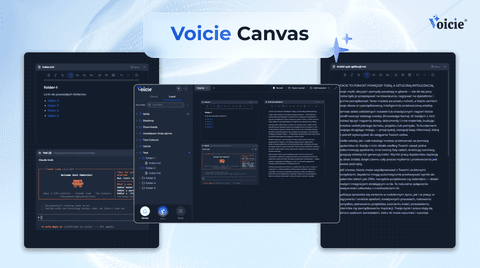
Canvas in Voicie: one board where you work with multiple AI agents and your own files
Product Announcements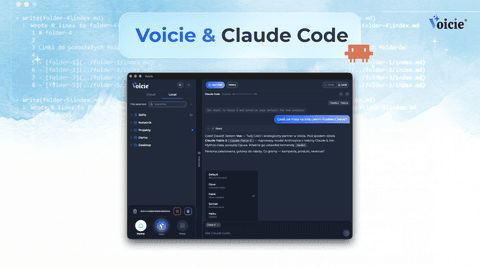
Claude Code in Voicie: an AI agent on your files, in a graphical layer over the terminal
Product Announcements