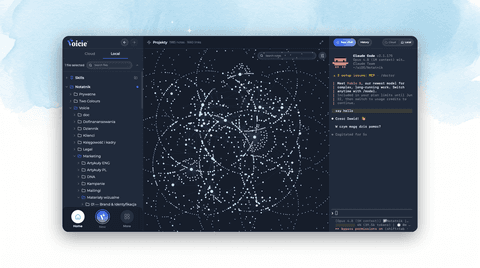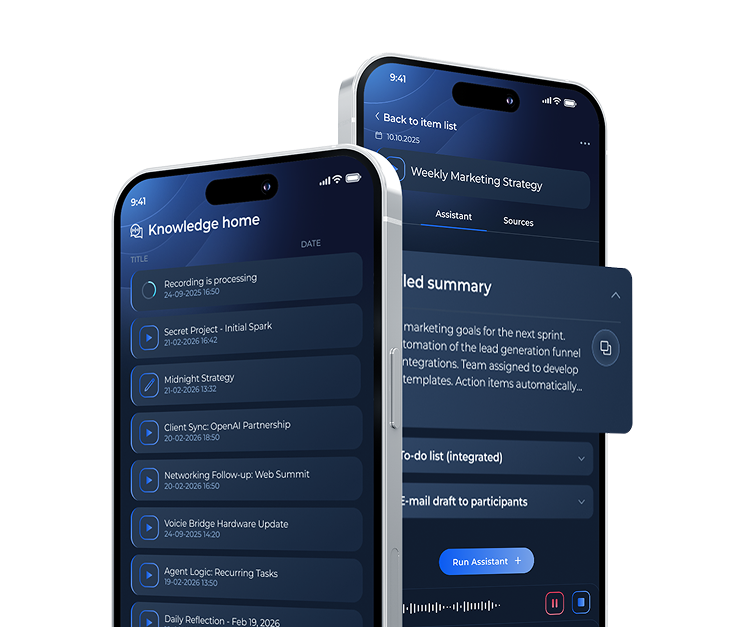
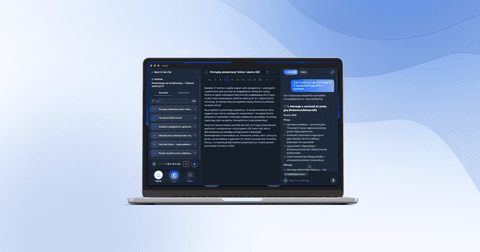
Voicie Desktop for macOS: transcription in a split second, system audio, and local AI models
Voicie Desktop is a voice-to-text transcription app for macOS that processes audio locally on your computer. It transcribes one hour of speech in under 30 seconds, automatically pastes text wherever you're typing, and records system audio from online meetings.
How does Clipboard Transcription work?
This is the feature users get hooked on the fastest.
You’re working in any app — email, Slack, Notion, text editor. You press Cmd+. (right Command and period), say what you want, press again. The text automatically pastes where you were typing. Done. No switching windows, no copying, no interrupting your workflow.
A personal stenographer sitting inside your computer, waiting for a single word. Except this one never takes a day off.
Speed that impresses
You might ask — how long does transcription take? Here are real-world results on MacBooks with Apple Silicon:
| Recording length | Transcription time |
|---|---|
| A few sentences | Split second |
| 1 minute | Instant |
| 7 minutes | ~2 seconds |
| 15 minutes | ~7 seconds |
| 1 hour | <30 seconds |
Read that again: one hour of speech transcribed in under 30 seconds. A seven-minute speech in two seconds. This is the result of local AI models optimized for the Neural Engine in Apple Silicon processors.
What does this mean in practice? Dictating an email instead of typing — you speak for a minute, the text is ready before you can take a sip of coffee. Transcribing a one-hour interview in under 30 seconds — no waiting, no sending files to an external service. Turning 30 minutes of meeting notes into text faster than it takes to open a document and type a heading. With several meetings a day, those minutes add up to hours.
Stats that motivate
Voicie tracks how much time it saves you. In the settings you’ll find stats:
- How many transcription sessions you’ve completed
- How many words and characters you’ve transcribed
- How many keystrokes you’ve replaced with your voice
When you see that you’ve saved several hours of typing last month — Clipboard Transcription becomes a habit you can’t imagine working without.
Local transcription — how does it work?
Clipboard Transcription and audio file transcription run entirely on your computer. AI models are downloaded once and run offline — you can transcribe even without an internet connection. If you add material to your knowledge base, transcription happens in the cloud and data syncs with our server so it’s available across the app.
How it works technically
Voicie uses the fastest available models, optimized for Apple Silicon processors (M1, M2, M3, M4). The app automatically selects the fastest available engine:
- Neural Engine (ANE) — fastest, uses the dedicated AI chip in your MacBook
- Metal GPU — uses the graphics card
- CPU — universal fallback
You don’t need to configure anything — Voicie automatically detects what your computer supports and chooses the optimal path.
How to record system audio on macOS?
This feature opens up entirely new possibilities: Voicie can record audio played by your computer.
What this means in practice
- Zoom, Google Meet, or Teams meeting — start recording, Voicie captures the meeting audio and transcribes the entire conversation
- Podcast on Spotify or YouTube — you listen while Voicie creates a transcription in the background
- Online course or webinar — extract text from video content without manual transcription
Voicie mixes microphone audio and system audio simultaneously. This means that during an online meeting, the transcription covers both what you say and what you hear from other participants.
How to set it up step by step
- Open Voicie settings and enable the system audio recording option
- macOS will ask for Screen Recording permission — grant it (without this, the system won’t share the audio stream)
- Create a new Knowledge Item and start recording — Voicie captures the microphone and system audio simultaneously
- Stop recording — transcription happens in the cloud and the result is added to your Knowledge Item
The entire setup takes less than a minute and you only do it once.
Audio visualization
During recording, you see a volume level visualization, so you can be sure the audio is being captured correctly.
Transcription of audio and video files
Have a meeting recording, a podcast to transcribe, or a tutorial video? Drag the file onto the Voicie window — and you’re done.
Supported audio formats: MP3, WAV, M4A, OGG, FLAC
Supported video formats: MP4, MOV
For video files, Voicie automatically extracts the audio track and transcribes it. You don’t need any additional tools.
File transcription runs locally on your computer. If you want to add the transcribed material to your knowledge base, it will be synced with the cloud.
Overlay — a discreet recording overlay
When you press Cmd+., a small, transparent overlay appears on screen. It doesn’t get in the way of your work, but keeps you informed about the recording status:
- Sound wave animation during recording
- Recording duration
- Transcription result after completion
- Pause and cancel buttons
The overlay automatically hides after a few seconds. It’s subtle, but always lets you know what’s happening.
System requirements and permissions
Voicie Desktop requires a Mac with an Apple Silicon processor (M1, M2, M3, M4, or newer). Intel processors are not supported — the AI models need the Neural Engine, which is only available in Apple Silicon chips.
On first launch, macOS will ask for several permissions:
- Microphone (required) — without this, Voicie can’t record your voice
- Screen Recording (optional) — only needed for recording system audio from meetings
- Accessibility (optional) — enables automatic text pasting after transcription (Clipboard Transcription)
You grant each permission once and never need to revisit it.
Knowledge base, assistants, and AI chat
Voicie Desktop is more than just transcription. You get full access to everything else: a knowledge base with themed items, AI assistants with custom instructions, AI chat in the context of your knowledge (with attachments, web search, and voice dictation).
There’s also Quick Chat — a floating chat window you can summon with Cmd+/ (right Command and slash) from anywhere on your screen. Always on top, ready for a quick question without switching to the main window.
Transcription history
Every transcription is automatically saved in a local database. You can:
- Browse the full history with search
- Delete individual or bulk-selected transcriptions
- Reprocess recordings with a different model
- Open the audio file directly in Finder
Who is Voicie Desktop for?
The desktop app is ideal for people who:
- Type a lot — dictation is 3-4x faster than typing, and with Clipboard Transcription the text goes exactly where it needs to
- Attend online meetings — system audio recording automatically transcribes conversations
- Value local transcription — Clipboard Transcription and file transcription work offline, without sending audio to the cloud
- Work with audio/video content — drag & drop a file and get a ready transcription
- Want to save time — the stats don’t lie, these are real hours saved every month
How does it compare to SuperWhisper and Whisper?
There are a few local transcription tools for macOS on the market. SuperWhisper and the native Whisper API handle transcription itself — and they do it well. Voicie goes further: beyond transcription, you get a knowledge base, configurable AI assistants, chat in the context of your data, and integrations with external tools via webhooks. For a detailed comparison, see the article Voicie vs. ChatGPT, NotebookLM, and others.
Frequently asked questions
Does Voicie Desktop work offline?
Yes. Transcription runs entirely on your Mac using local AI models. No internet connection is required. Models are downloaded once and work offline from that point.
Does Voicie work on Intel Macs?
No. Voicie Desktop requires Apple Silicon (M1, M2, M3, M4 or newer). The AI models rely on the Neural Engine, which is only available on Apple Silicon chips.
Is Voicie better than SuperWhisper?
Both handle local transcription well. Voicie goes further: beyond transcription, you get a knowledge base, configurable AI assistants, AI chat in the context of your data, and webhook integrations with external tools like CRM, Slack, and ClickUp. SuperWhisper focuses on transcription only.
Is Voicie Desktop free?
The local transcription feature is completely free — no API costs, no subscription. For AI assistants and cloud features, Voicie uses BYOK (Bring Your Own Key): you connect your own API key and pay the provider directly.

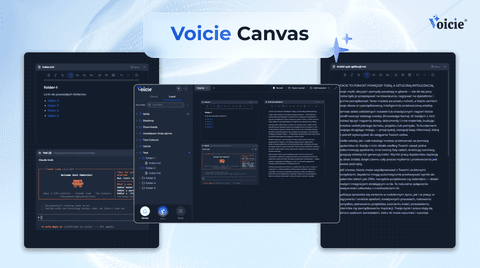
Canvas in Voicie: one board where you work with multiple AI agents and your own files
Product Announcements
Claude Code in Voicie: an AI agent on your files, in a graphical layer over the terminal
Product Announcements