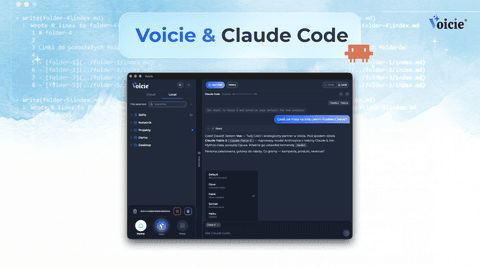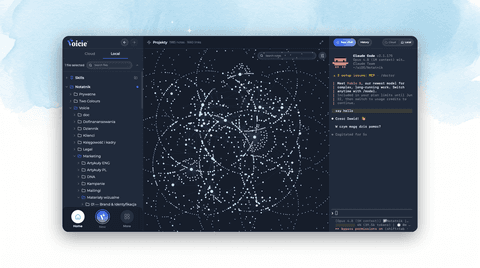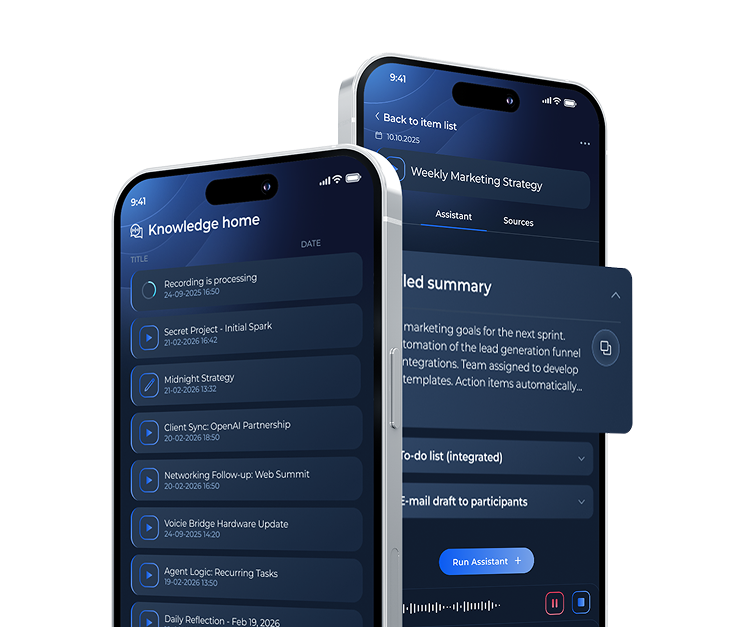
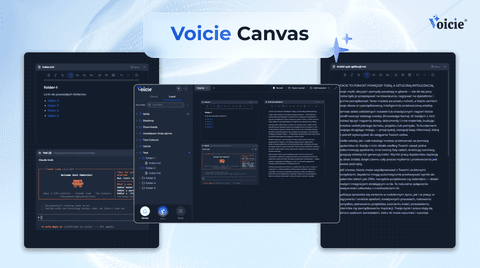
Canvas in Voicie: one board where you work with multiple AI agents and your own files
An infinite canvas where you place AI agents, terminals and your own files side by side - and see the whole project in one frame instead of jumping between windows.
Canvas is an infinite online whiteboard inside Voicie where you place AI agents, terminals and your own files side by side, and see the entire project in a single frame. Instead of jumping between windows, you keep research, writing, notes and documents in one place. You lay the work out and make the calls, the agents do it.
Already on Voicie? Open the “More” menu and pick “Canvas”. Not yet? Download Voicie for macOS or Windows.
What Canvas is
Picture a huge, empty board you can pan and zoom freely, like in Miro or Figma. A board like that is usually called an infinite canvas or an online whiteboard. There’s one difference, and it’s the whole point: on the board in Voicie you don’t place dead sticky notes, you place living things that actually work.
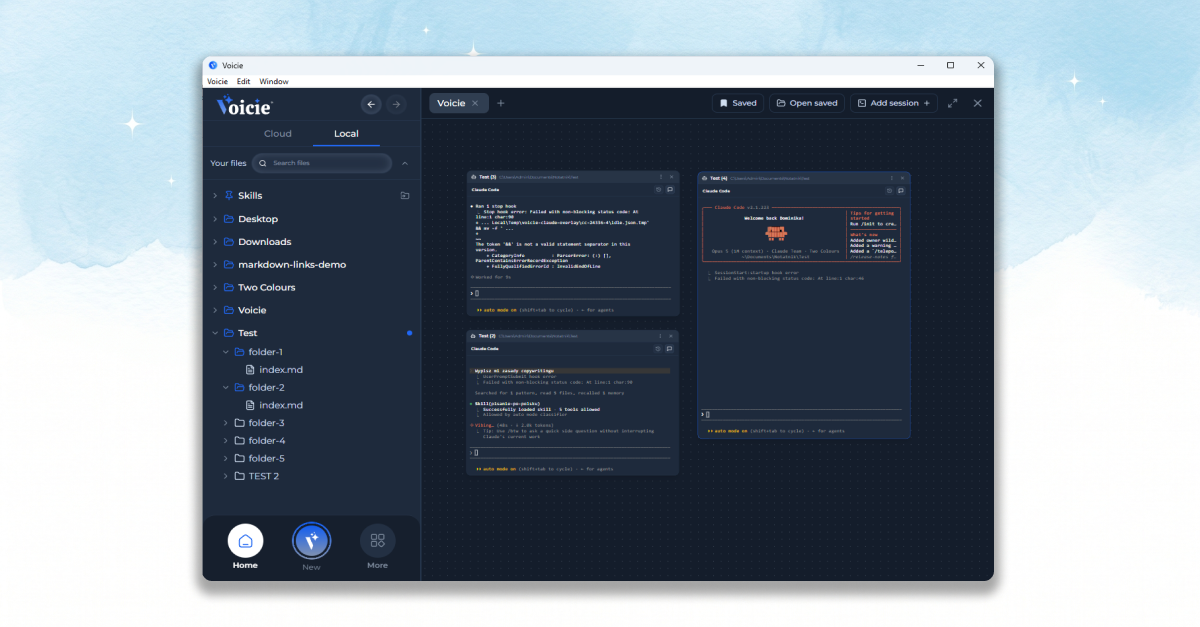
You put three kinds of boxes on Canvas:
- a chat with an agent (Voicie Agent or Claude Code),
- a terminal,
- files from your drive (notes, documents, PDFs).
You arrange them however suits you. That’s what separates an AI canvas from a plain virtual whiteboard: the agent in a box really does something, and the file next to it refreshes live the moment the agent changes it.
Why would you want a board with AI agents?
The short version: one project, one tab. Say you’re putting together a campaign. On a single board you set up one agent doing research, another writing copy, and next to them you drop the client brief and your own notes. You see all of it at once. You’re not guessing what happened where, because the whole project context is right in front of you.
Voicie organizes work in three steps: you capture ideas and material, you organize them, and Canvas is the context layer - the place where all that material meets the agents. So you work on your real files, not in a chat detached from them.
What you can put on the board
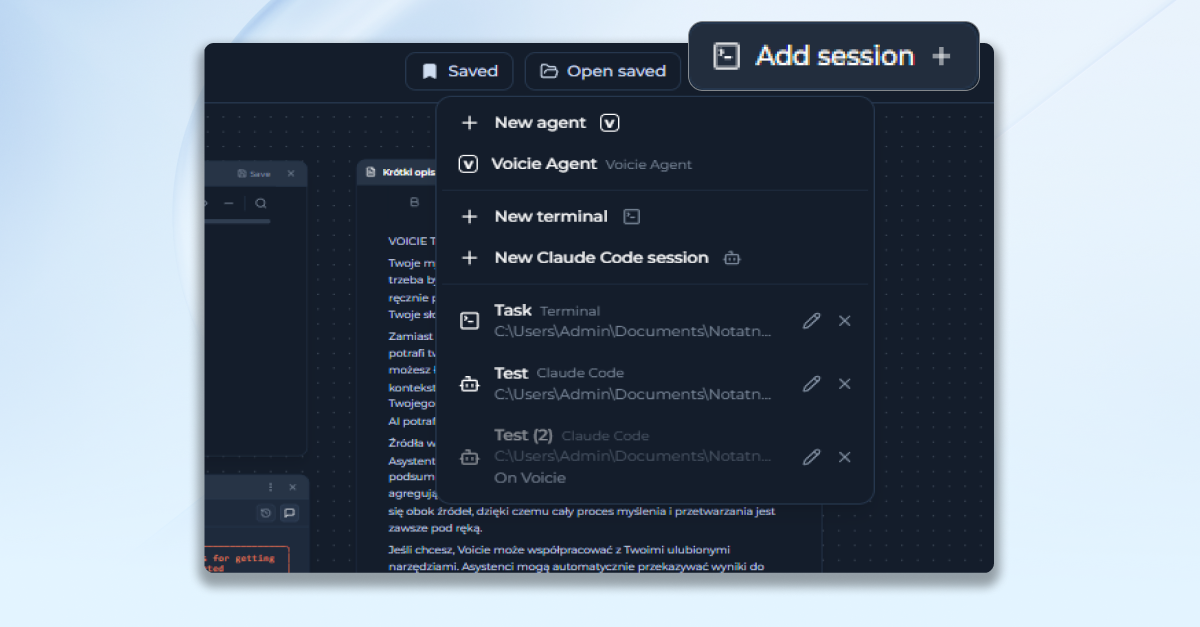
You add a box with the “Add session” button. You can pick a new terminal, a new Claude Code session or a new chat with the Voicie Agent. They all fit next to each other on one interactive online board, and every box can be moved, resized and named however you like.
Every box is a full, working tool, not a picture. The terminal is a real terminal, a Claude Code chat runs exactly like it does in the Local panel, and the Local Agent on the board is the same conversation window you get everywhere else in the app.
Several agents working at the same time
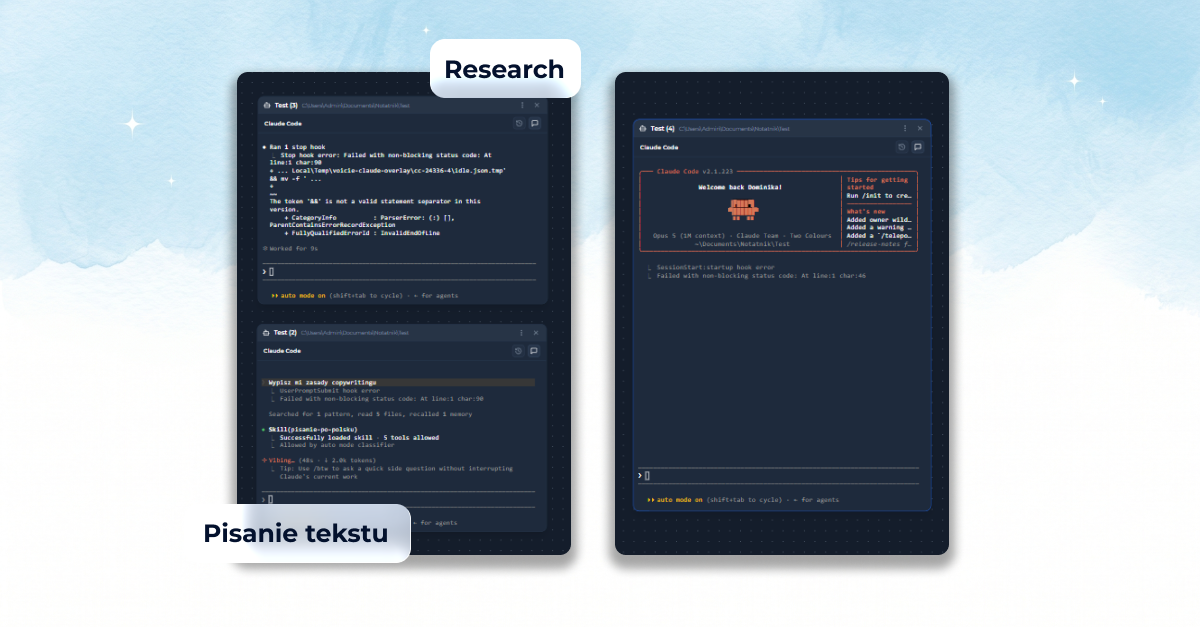
On Canvas you can have several agents working at once, each on a different task. And importantly, their answers don’t blend together - every box holds its own conversation. That’s the whole idea behind an AI agent canvas: you lay out several agents like a team, hand out the tasks and watch the whole thing.
Your files right on the board
You drag files from the file tree on the left straight onto the board, and each one turns into its own box. A note or a text document you edit in place, PDFs and images you preview. And when an agent changes a file, the box refreshes live - you see the result of its work immediately, without reopening anything.
Tabs and saving
Every board lives in its own tab (a canvas) and gets a name you choose, for instance the name of the project. Boards save themselves, and the “Save for later” button tucks them into a library you come back to through “Open saved”.
After you close and reopen the app, the layout comes back exactly as it was, but the agent and terminal boxes wait dormant, with a “Run again” or “Resume conversation” button. One click and you pick up where you left off.
How to turn it on and who it’s for
You’ll find Canvas in the “More” menu on the left. Before you start, check a few things:
- It’s a paid feature - the full version of Voicie is required.
- Canvas itself doesn’t need the terminal enabled - you can drop the Local Agent and your files onto the board right away. You only enable the terminal in Settings (Settings → Local AI → Advanced) when you want to place terminals and Claude Code sessions on the board.
- The number of sessions running at once is limited, but the limit isn’t per board - it covers the whole app, adding up terminals, Claude Code sessions and extra agent conversations.
- The people who gain the most are the ones juggling several threads at once: anyone running projects, marketing or research. You don’t need to know how to code - you put agents and files on the board, they handle the rest.
What you put on Canvas and what you get
| Box on the board | What for | What you get |
|---|---|---|
| Agent chat (Voicie / Claude Code) | handing out tasks on your files | the agent works, you watch the progress |
| Terminal | advanced operations on files | a full tool, not a picture |
| File from your drive | note, document, PDF, image | preview and editing, live refresh |
| Several boxes at once | the whole project in one frame | no more jumping between windows |
Frequently asked questions
What is an AI canvas?
It’s an infinite board where, instead of static notes, you place living AI agents, terminals and your own files. In Voicie it’s called Canvas and it’s built for working on a whole project in a single view.
Is the virtual whiteboard in Voicie free?
No, Canvas requires the full version of Voicie. You can download the app and get started for free, but the board with agents sits in the paid tier. We say that up front so there are no surprises.
How many agents can I run at once?
As many as the project needs - each in its own box, with its own conversation. The limit isn’t per board, it covers the whole app, adding up terminals, Claude Code sessions and extra agent conversations.
Do I need the terminal enabled to use Canvas?
No. Without the terminal you can still put the Local Agent and your files on the board. The terminal (Settings → Local AI → Advanced) only matters for terminal boxes and Claude Code sessions.
Will the agents restart on their own after I reopen the app?
No. The board layout comes back, but the boxes wait dormant with a “Run again” or “Resume conversation” button - they start when you click.
How is this different from Miro or a regular virtual whiteboard?
Miro holds sticky notes and drawings. Canvas holds working tools: the agents do things, the files refresh, the terminal runs. It’s a board for working with AI on your own material, not for taking notes.
Anything to watch out for?
Unsaved changes in file boxes can disappear after an app restart, so save as you go (Ctrl+S). If you rename a file in the tree, the box will show “File not found” - just drag the file onto the board again.
To wrap up
Canvas changes how you work with AI: instead of a single chat you get a space where you lay out the whole project - agents, files and tools - and see it all at once. You’re the captain handing out the tasks. The agents are the engine.
Want to see how the best agent for working on files behaves on a board like this? Read the piece on Claude Code in Voicie. And if you’re just starting out, download Voicie and lay out your first project on a board.